> For the complete documentation index, see [llms.txt](https://enercalc.com/docs/llms.txt). Markdown versions of documentation pages are available by appending `.md` to page URLs; this page is available as [Markdown](https://enercalc.com/docs/sel-user-manual/calculation-modules/general/project-load-group-builder.md).
# Project Load Group Builder
How to store reusable load items by category and combine them into load groups to total project loads.
Use the Project Load Group Builder to store the load items you use most and combine them into groups that total automatically. The module lets you:
* Define reusable **load items** and assign each one a load case (dead, live, snow, and so on).
* Draw on two libraries: the built-in **ENERCALC Supplied** library and your own **User Defined** library that carries across projects.
* Organize load items into **categories**.
* Combine load items into **load groups** that total for the current project, broken out by load case.
* Print a tabular summary of every load group.
The module has three tabs, one for each load geometry: **Area Loads**, **Line Loads**, and **Point Loads**. Each tab builds its own groups, and the workflow is the same on all three. The examples on this page use the **Area Loads** tab.
The Project Load Group Builder, Area Loads tab
## Load Items
A load item is a single named load with a load case and a value. It can represent a material weight, such as the dead load of 1/4-inch linoleum in psf; an allowance, such as 5 psf live load for mechanical and miscellaneous; or any other load.
### Load libraries
The **Load Items List** draws on two libraries, switched with the **ENERCALC Supplied** and **User Defined** buttons:
* **ENERCALC Supplied** is a built-in library of common material and occupancy loads, grouped into categories such as Ceilings and Floors. It includes the minimum uniform and concentrated live loads from ASCE 7 Table 4.3-1 and dead loads from ASCE 7 Table C3.1-1a and AISC 360 Table 17-13. It's stored in `LoadDbase_ENERCALC-SUPPLIED.TPS` in the program folder (`C:\Program Files (x86)\ENERCALC_20`).
* **User Defined** holds the load items you create, stored in `LoadDbase.TPS` in your ENERCALC data folder (`…\Documents\ENERCALC Data Files\`). This library grows as you work and is available to every project.
The User Defined load library
Use the **Category** and **Load Case** tabs above the list to organize it by category or by load case. **Create a Sample Entry** adds a starter row you can edit, and **Delete** removes the selected item.
To find an item in a long list, type in the **Filter by Keyword** field above the list. The list narrows as you type to items whose name or category contains the text, and a clear button appears at the end of the field to restore the full list. Right-click the list for **Expand All** and **Collapse All**.
Use the **Display** buttons (**All**, **None**, or an individual case such as **D** or **L**) to show or hide load-case columns.
{% hint style="info" %}
**NOTE:** Load groups, unlike load items, are saved in the current project file rather than in a shared library, so they don't carry across projects.
{% endhint %}
### Add a load item
1. Select the **User Defined** database.
2. Enter a **Category** name.
3. Enter a **Load Name**.
4. Choose the **Load Case**.
5. Specify the **Load Value**.
6. Select **Add as new Load Item**.
The item appears in the **Load Items List**.
### Edit a load item
1. Select the item in the **Load Items List**.
2. Change the entry fields.
3. Select **Save Edits to Current Load Item**.
## Categories
A category groups related load items so a large collection stays organized.
Load items organized by category
The scheme is up to you. One approach organizes items by material or load type; another builds each category around a typical building assembly and its combined loads.
Categories by material or load type
**Roof Sheathing**
* 1/2" sheathing
* 5/8" sheathing
* 3/4" sheathing
* 7/8" sheathing
* 1" sheathing
**Roof Framing**
* 2x6\@16" o/c
* 2x8\@16" o/c
* 2x10\@16" o/c
* 2x12\@16" o/c
**NW Concrete Slab**
* 4.5" total with 2" deck
* 5.0" total with 2" deck
* 5.5" total with 2" deck
* 6.0" total with 2" deck
* 5.5" total with 3" deck
* 6.0" total with 3" deck
* 6.5" total with 3" deck
**LW Concrete Slab**
* 4.5" total with 2" deck
* 5.0" total with 2" deck
* 5.25" total with 2" deck
* 5.5" total with 2" deck
* 6.0" total with 2" deck
* 5.5" total with 3" deck
* 6.0" total with 3" deck
* 6.25" total with 3" deck
* 6.5" total with 3" deck
**Live Load**
* Classroom
* First Floor Corridor
* Office
* Stack Rooms
**Snow Load**
* 30 psf
* 32 psf
* 34 psf
* 36 psf
Categories by building assembly
**Typical classroom on structural floor**
* DL of flooring
* DL of concrete slab on metal deck
* DL of composite metal deck
* DL allowance for structural steel framing
* DL allowance for ceiling & lights
* DL allowance for mechanical & misc.
* LL for classroom occupancy
* LL for partition allowance
**Typical corridor on structural floor**
* DL of flooring
* DL of concrete slab on metal deck
* DL of composite metal deck
* DL allowance for structural steel framing
* DL allowance for ceiling & lights
* DL allowance for mechanical & misc.
* LL for corridor above first floor occupancy
**Typical roof structure**
* DL of asphalt shingles
* DL allowance for second layer of asphalt shingles
* DL of metal roof deck
* DL structural steel framing
* DL allowance for ceiling & lights
* DL allowance for mechanical & misc.
* SL for sloped roof
## Load Groups
A load group is a set of load items that sum to a total. Load groups belong to the current project file and are listed under the group-name list. The toolbar beside the list adds a new group, renames the selected group, deletes it, or copies it.
The Load Groups table
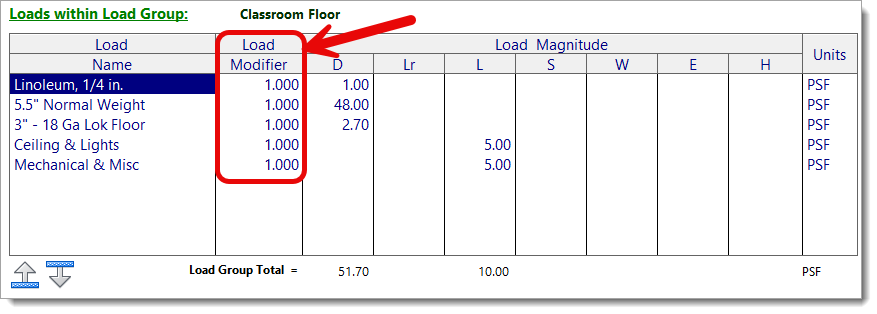
Select a group to see its loads in the **Loads within Load Group** list. Each line shows the load item's name, its **Load Modifier**, and the load magnitude placed in the column for its load case (**D**, **Lr**, **L**, **S**, **W**, **E**, **H**), with units. The **Load Group Total** row totals each load case separately.
### Load Modifier
The **Load Modifier** column scales an individual load line. It defaults to 1.000, and the reported magnitude equals the base value times the modifier. One load item can then stand in for several thicknesses or spacings without a separate database entry for each. For example, set a `Gypsum Board, 1 inch` item to a modifier of 0.625 to represent 5/8-inch material.
Editing a load item's Load Modifier
To change a modifier:
1. Select the modifier cell.
2. Enter the new value.
3. Press Tab, Enter, or click somewhere else to commit the value. Press Esc to discard it.
The magnitude updates automatically.
### Adding or Removing Load Items to a Load Group
To add or remove a load item from a load group:
1. Select the Load Group in the group list.
2. Select the Load Item in the **Load Items List**.
3. Select **Add** or **Remove**.
### Reordering Load Items in a Load Group
Load items appear in a default order based on load case. To arrange them in a specific order, use the **Shift Up** and **Shift Down** buttons below the **Loads within Load Group** list:
1. Select a load item in the **Loads within Load Group** list.
2. Select **Shift Up** or **Shift Down** to move it one position.
The order you set is saved with the project, and the printed report lists the items in that same order.
## Printing
The print output includes every defined load group with a tabular summary of the load items that make up each group.
---
# Agent Instructions
This documentation is published with GitBook. GitBook is the documentation platform designed so that both humans and AI agents can read, navigate, and reason over technical content effectively. Learn more at gitbook.com.
## Querying This Documentation
If you need additional information that is not directly available in this page, you can query the documentation by asking a question.
Perform an HTTP GET request on the following URL with the `ask` and `goal` query parameters:
```
GET https://enercalc.com/docs/sel-user-manual/calculation-modules/general/project-load-group-builder.md?ask=&goal=
```
`ask` is the immediate question: it should be specific, self-contained, and written in natural language.
`goal` is what the user is ultimately trying to achieve, the reason they need the answer. Sharing it helps GitBook give you a better, more relevant answer. A goal is most helpful when it describes the outcome the user wants rather than restating the question. For example, with `ask=how do I create an API token`, a goal like `automate deployments from our CI pipeline` lets GitBook tailor the answer to that use case.
The response will contain a direct answer to the question and relevant excerpts and sources from the documentation.
Use this mechanism when the answer is not explicitly present in the current page, you need clarification or additional context, or you want to retrieve related documentation sections.


.png?alt=media)